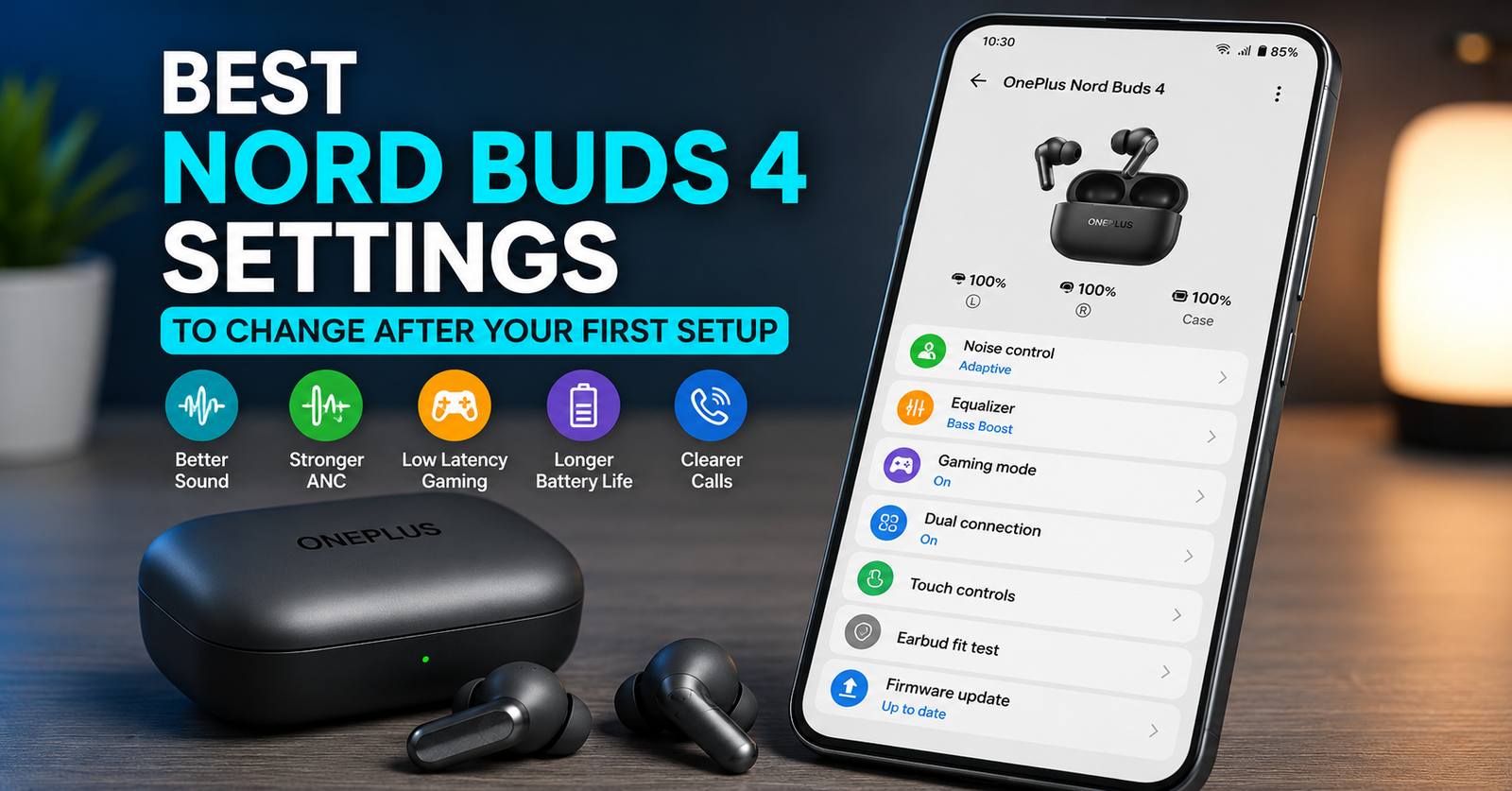
Best Nord Buds 4 Settings to Change After Your First Setup
Buying a new pair of earbuds is exciting, but the experience doesn’t always feel as impressive as expected straight out of the box. That’s usually because manufacturers ship products with balanced default settings that work for everyone—not necessarily the best settings for you.
The same applies to the OnePlus Nord Buds 4.
If you simply connect the earbuds and start listening to music, you’ll still get a decent experience. However, spending just a few minutes adjusting the Nord Buds 4 Settings can noticeably improve sound quality, call clarity, battery life, and even gaming performance.
Whether you’re listening to playlists during your commute, attending online meetings, or playing mobile games, these settings can make the earbuds feel much more personalized.
Why Your Nord Buds 4 Settings Matter
Every person uses earbuds differently.
Some people love deep bass, while others prefer balanced vocals. Some spend hours on calls, whereas gamers care more about low latency than anything else.
Default settings try to satisfy everyone, but they rarely deliver the best experience for individual users.
The good news is that OnePlus includes several customization options through its companion app. Most people never explore these features, which means they continue using the earbuds without realizing they’re missing out on better performance. (Nord Buds 4 Settings)
A few simple adjustments can make a surprisingly noticeable difference.
Connect the Earbuds with the Official Companion App
Before changing anything, pair your earbuds with the official OnePlus audio companion app.
The app unlocks features such as:
- Equalizer controls
- Active Noise Cancellation adjustment
- Touch gesture customization
- Gaming mode
- Firmware updates
- Device controls
Without the app, you’ll only experience a fraction of what the earbuds can actually do.
Adjust the Equalizer Based on What You Listen To
One of the first Nord Buds 4 Settings worth changing is the Equalizer.
Instead of sticking with the default sound profile, choose one that matches your listening habits.
For music lovers
A Bass Boost profile works well with electronic music, hip-hop, and action movies.
For podcasts and YouTube
A balanced or vocal-focused profile makes speech much clearer, especially at lower volume.
For mixed usage
The default balanced mode is still a good choice if you regularly switch between music, calls, and videos.
For example, someone who spends an hour at the gym every evening may enjoy stronger bass, while a remote worker attending daily video meetings will likely appreciate clearer vocals instead.
Choose the Right Noise Cancellation Level
Active Noise Cancellation isn’t always something you should leave on maximum.
The ideal setting depends on where you’re using the earbuds.
High ANC
Perfect for flights, trains, buses, or busy offices.
Medium ANC
A good balance between noise reduction and battery life.
Transparency Mode
Useful when walking outdoors, cycling, or waiting for announcements at stations or airports.
Using maximum ANC everywhere may reduce battery life without providing any meaningful benefit in quieter environments. (Nord Buds 4 Settings)
Customize Touch Controls
Many users accidentally skip songs or pause music because the default touch controls don’t match their habits.
Take a minute to customize:
Double Tap
Play or pause music.
Triple Tap
Skip to the next track.
Long Press
Switch between ANC and Transparency Mode.
Small changes like these make everyday use much more convenient because your most-used functions become easier to access. (Nord Buds 4 Settings)
Enable Low Latency for Gaming
If you play games such as BGMI, Call of Duty Mobile, or Free Fire, this is one of the most important Nord Buds 4 Settings to enable.
Gaming Mode reduces audio delay, making sounds like footsteps, gunfire, and in-game notifications feel more synchronized with what’s happening on screen.
While casual users may not notice much difference, competitive gamers usually appreciate the faster response.
Just remember that lower latency can consume a bit more battery, so it’s worth enabling only when you’re actually gaming. (Nord Buds 4 Settings)
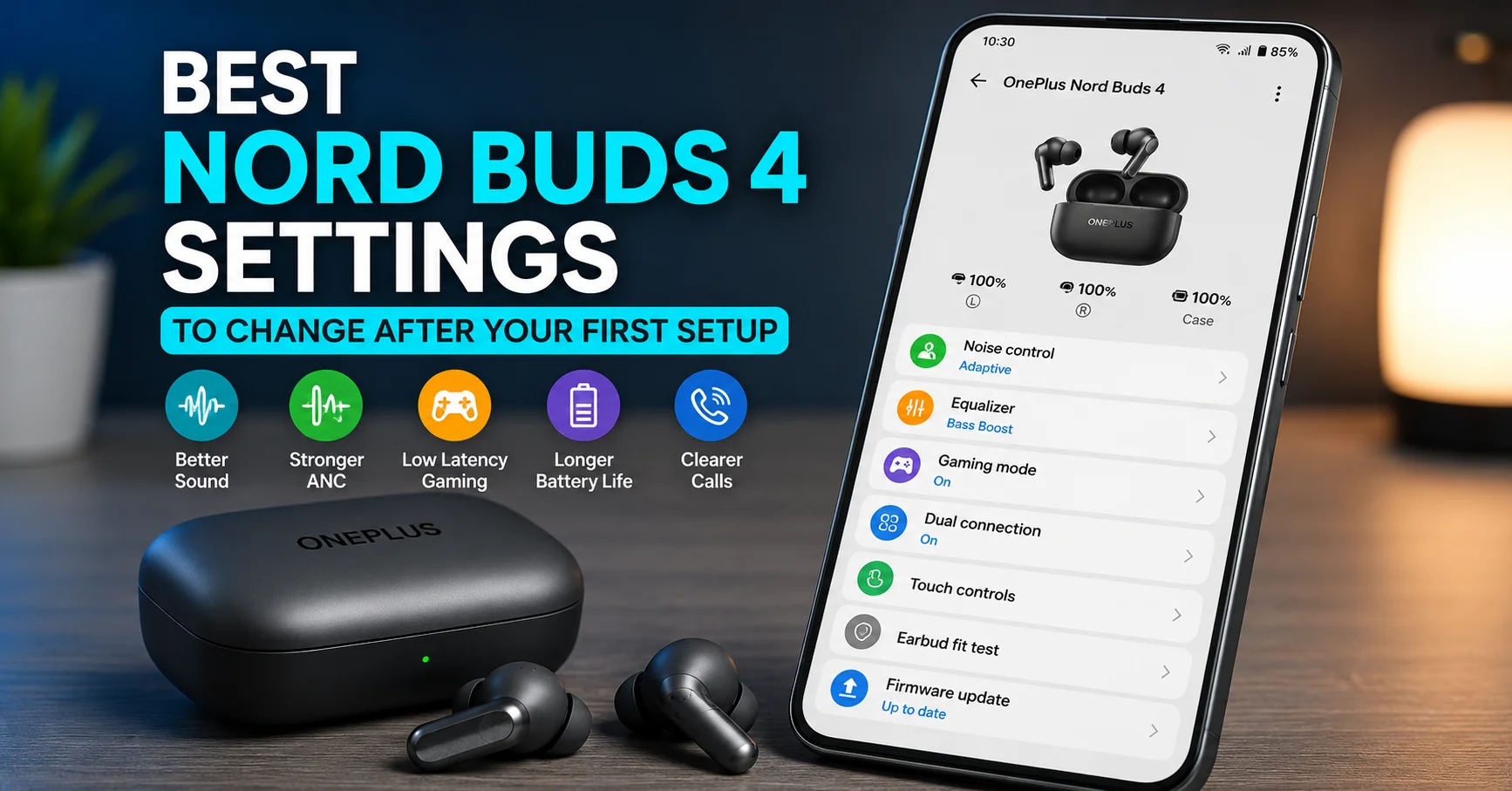
Keep Automatic Firmware Updates Enabled
Firmware updates don’t just add new features.
They often improve:
- Bluetooth stability
- Battery optimization
- Noise cancellation
- Microphone performance
- Bug fixes
Many users forget to install updates and continue using outdated software for months.
Checking for updates every few weeks helps ensure you’re getting the best possible performance from your earbuds.
Enable Dual Device Connection If You Switch Devices Often
If you regularly move between your phone and laptop, enabling dual-device connectivity can save time.
Imagine listening to music on your laptop while working. Suddenly your phone rings.
Instead of disconnecting and reconnecting manually, the earbuds can switch automatically to the incoming call and return to your laptop afterward.
It’s a simple feature, but one that quickly becomes difficult to live without once you’ve used it.
Don’t Ignore Battery Optimization Settings
Battery life depends as much on your settings as it does on the earbuds themselves.
To extend usage time:
- Use Medium ANC when possible.
- Disable Gaming Mode when not needed.
- Keep the firmware updated.
- Store the earbuds inside the charging case when not in use.
- Don’t leave the battery fully depleted for extended periods of time.
These small habits can help maintain both daily battery life and long-term battery health.
Fine-Tune Call Quality for Better Conversations
If you frequently attend online meetings or make voice calls, pay attention to microphone-related features.
Noise reduction works best when combined with a proper earbud fit.
A loose fit allows outside noise to leak in and can reduce call quality.
Trying different ear tip sizes often improves both comfort and voice clarity more than people expect.
This is one of those adjustments that’s easy to overlook but has a noticeable impact during longer conversations.
Spend a Few Minutes Personalizing the Experience
One interesting thing about modern wireless earbuds is that two people can own the exact same product yet have completely different experiences.
The difference usually isn’t the hardware—it’s how they’ve configured it.
Someone who spends a few minutes exploring the available Nord Buds 4 Settings will often enjoy clearer sound, more comfortable controls, longer battery life, and better overall usability than someone who never changes the defaults.
That’s why it’s worth treating setup as part of the purchase rather than an optional step.
Final Thoughts
The OnePlus Nord Buds 4 already offer a solid listening experience out of the box, but their real potential appears after a little personalization.
From adjusting the equalizer and choosing the right ANC level to enabling Gaming Mode and keeping firmware updated, these small changes can noticeably improve your everyday experience.
Instead of accepting the default configuration, spend a few minutes exploring the available Nord Buds 4 Settings. You’ll likely notice better sound, smoother controls, clearer calls, and a setup that feels tailored to the way you actually use your earbuds.

My name is Ankit Yadav, and I am a passionate digital journalist and content creator. I write about technology, entertainment, sports, and current affairs with the aim of delivering unique, accurate, and engaging information to my readers.
I believe news should not only inform but also provide clear insights and fresh perspectives. That’s why I focus on making my articles easy to read, reliable, and meaningful.
📌 I specialize in Tech Trends, Latest News, Cybersecurity, Digital Media, Sports, and Entertainment.
📌 My mission is to share fast, authentic, and valuable updates with every article I publish.